Supplies Needed: None.
- Open Chrome and navigate to the IP address of the scoring server (this should be the .100 address of the subnet the Streaming Unit computer is part of).
- If shown a list of events, select the current event. Ask the Equipment Manager or FTA, or use the dates as a point of reference.
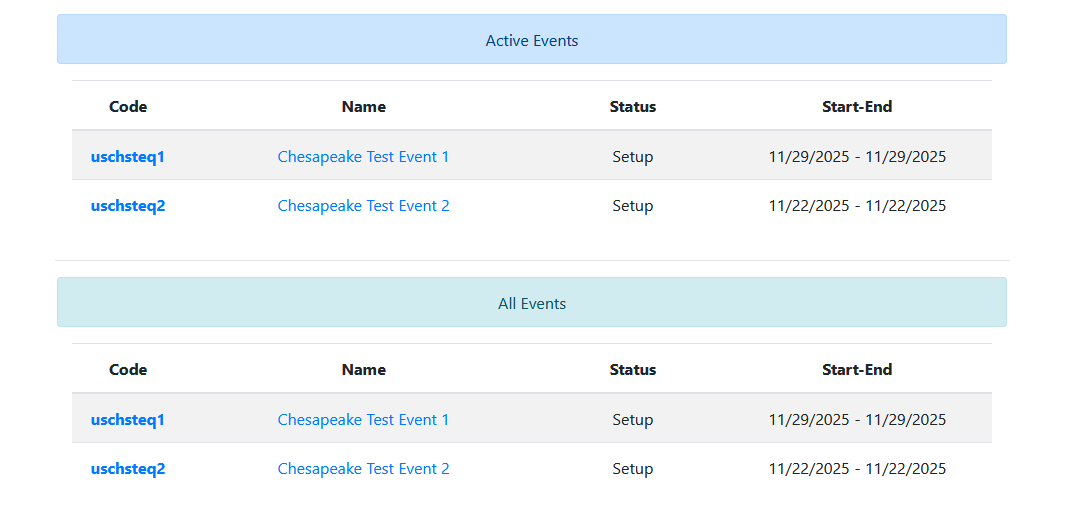
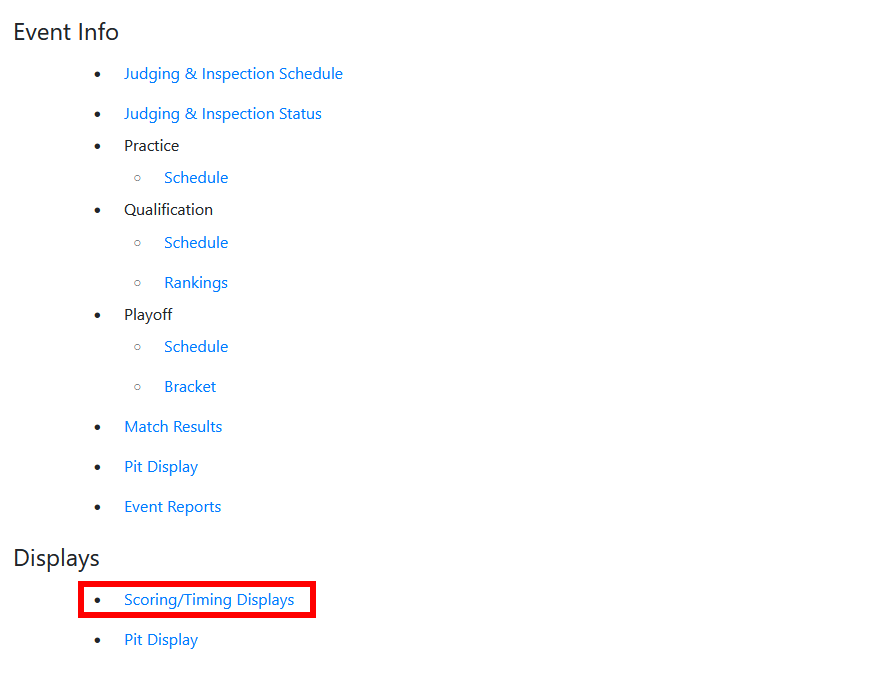
- If you are not prompted to select an event, you will land on the same dashboard as if you were prompted to select an event. Within this dashboard, select “Scoring/Timing Displays” near the bottom of the screen.
- You should be directed to a screen with a popup configuration page. Follow these steps carefully to ensure the correct configuration is applied.
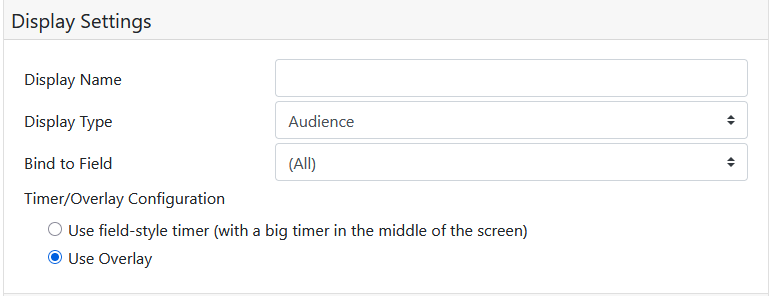
- The default menu to display is “Display Settings”. Within this, set the settings as shown in the screenshot.
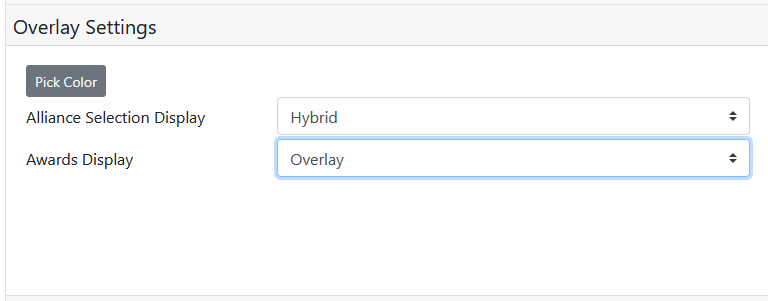
- When you select “Use Overlay”, a new sub-menu appears titled “Overlay Settings”. Open this sub-menu and click the “Pick Color” button. Set it to transparent.
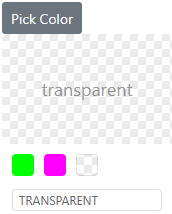
Then, click the Pick Color button again to close it. Set the settings as shown in the screenshot.
- Click “Save” to close the menu. Then, click in the URL bar and copy the URL that is present.
Stage 5a is complete. Proceed immediately to complete Stage 5b.
- The default menu to display is “Display Settings”. Within this, set the settings as shown in the screenshot.