Supplies Needed: None.
These Steps Are Only Necessary For the First Event Using Each Field Each Season
- Ignore these steps if you are not the first event to use the field this season. These steps should only need to be carried out once per season.
- Click the link or type the URL to proceed to the FMS Web Audience Display at http://10.0.100.5/AudienceDisplay.The link above only works on the Streaming Unit computer when connected to the FMS network.
- Mouse over the screen to reveal the hover menu, then click Settings. Alternatively, hold the ALT key and press C while the browser is in focus to open the menu.
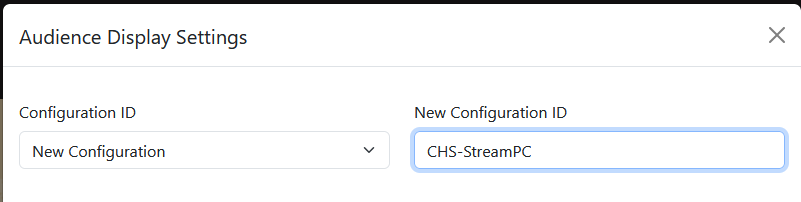
- In the settings menu, click the dropdown next to “Configuration ID”. If you see an entry in this list called “CHS-StreamPC”, stop following this block of steps and skip to the next section.
- Select “New Configuration” from the list and in the “New Configuration ID” window, enter “CHS-StreamPC”.
- Select the settings as shown and described below:
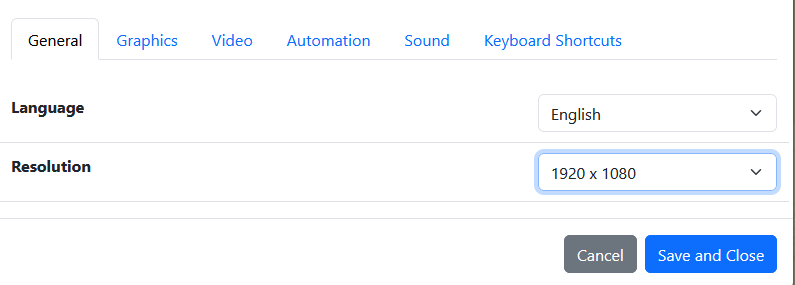
- General
Language: English
Resolution: 1920 x 1080
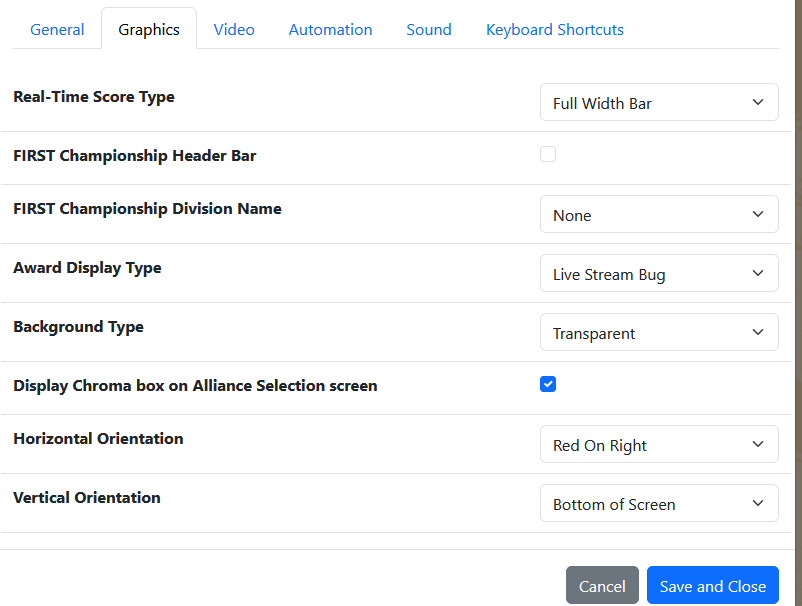
- Graphics
Season-Specific Settings (2026)
Real-Time Score Type: Full Width Bar
FIRST Championship Header Bar: Unselected (no checkbox)
FIRST Championship Division Name: None
Award Display Type: Live Stream Bug
Background Type: Transparent
Display Chroma box on Alliance Selection screen: Selected (checkbox)
Horizontal Orientation: Red On Right
Vertical Orientation: Bottom of Screen
- Video
Enable OBS Integration: Unselected (no checkbox)- Automation
Enable BitFocus Integration: Unselected (no checkbox)
- Click the blue Save and Close button once all settings are set.

- Open OBS and select the Audience Display scene.
- Inside, click the Audience Display source with the globe icon, then select Properties.
- Verify that the URL is *http://10.0.100.5/AudienceDisplay/CHS-StreamPC.
- Verify that the audience display scene loads correctly and shows an image that fills the screen. If the audience display image does not show over the entire window, follow the steps for the first event using the field above (in the collapsible container).
Stage 5a is complete. Typically, the next step is to complete Stage 5b.