Materials needed: None.
- In OBS, navigate to the “MAIN” scene and verify that all camera inputs are populated as expected. Check to make sure that each alliance camera is the correct one that it claims to be. Check cable connections if any are not operating as expected. If the colors are incorrect, simply swap the video cables for the Red and Blue inputs. If there is no video, a disconnected cable (either power or SDI) is the most common reason. A faulty cable is also a potential culprit.
- Navigate to the FMS Video Switch by opening http://10.0.100.5/VideoSwitch on the Streaming Unit. You can also open the main FMS Website and click “Video Switch” at the top.
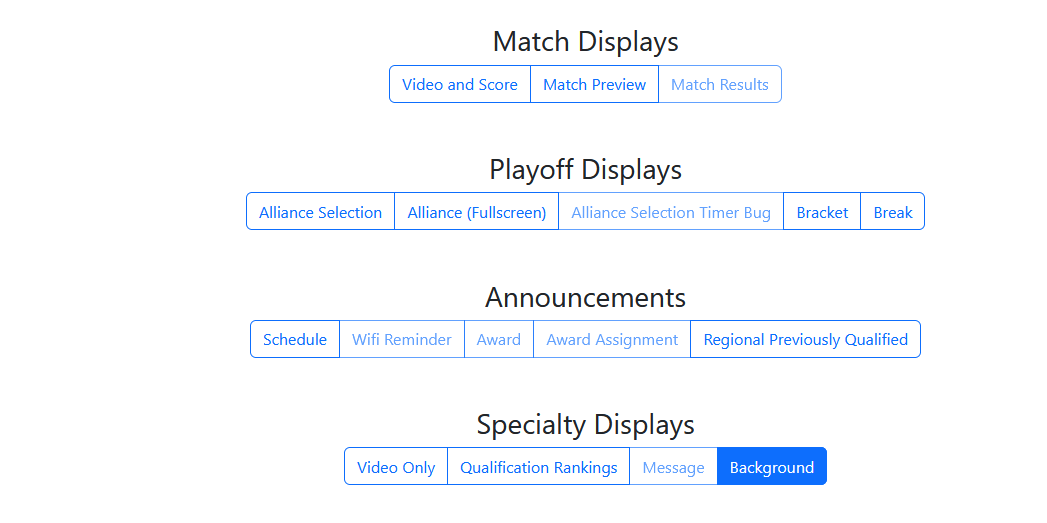
- Click “Background” and verify that the output from the Audience Display shows over the camera feed.
- Click “Video Only” and verify that the camera feed shows through.
- Right-click over the Program window and