- Determine if Streaming Unit has Internet connectivity. The Windows networking icon is often inaccurate and/or slow to update. A better test is to launch the YouTube website or another site (e.g., https://www.firstinspires.org/, https://www.firstchesapeake.org/).
- Follow the steps below only if connectivity is having issues. Otherwise, stage 1d is complete. Continue to stage 1f.
Tap to expand/collapse network connection issues.
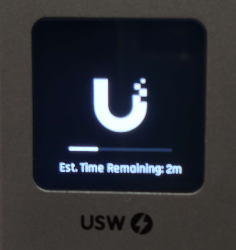
- Verify that the network equipment has booted all the way up. The network equipment takes a few minutes to boot. If either of the silver devices in the rack show a progress bar and timer, as seen below, wait until the progress bars disappear before trying any other steps.
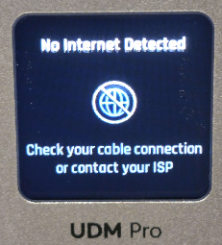
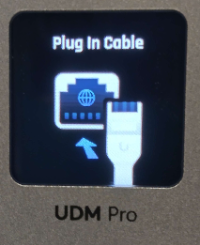
- Look at the status display of the UDM Pro device (the bottommost silver device). It will show basic troubleshooting information for some common setup faults. You can see a sample of these messages below. Follow the prompts if any are shown on the screen. Note that “No Internet Detected” is likely to require the intervention of the Equipment Manager and some of the troubleshooting steps in stage 1e. However, a faulty cable or other uplink issue has been observed to cause this screen as well.
- Verify connectivity with the Streaming Unit rack router:
ping <router IP address>
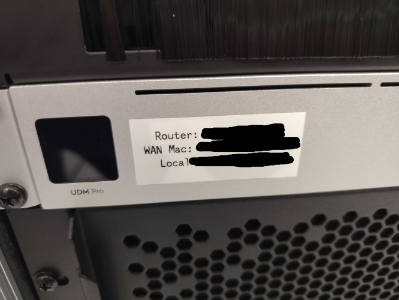
This address is variable depending on which route you are working with. Refer to the label on the front of the Streaming Unit to determine which IP address to ping.
If this fails, release and renew the IP address on the streaming unit computer. (from an administrative command prompt, run):
ipconfig /releaseandipconfig /renew
If continued failure, reboot Streaming Unit computer.
If still continued failure, seek assistance from Equipment Manager to carry out steps in stage 1e.