- Ensure that the server is logged into with “Event Admin” permissions or higher. The default ‘local’ user has these permissions.
- Click the FTC Logo to go to the event homepage.
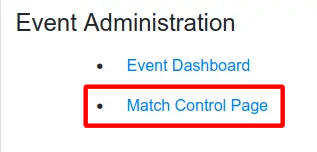
- Scroll down to section Event Administration and click Match Control Page.
- In the match control page, open the Settings tab (shown by the red arrow).
- Enable the following settings as shown below.
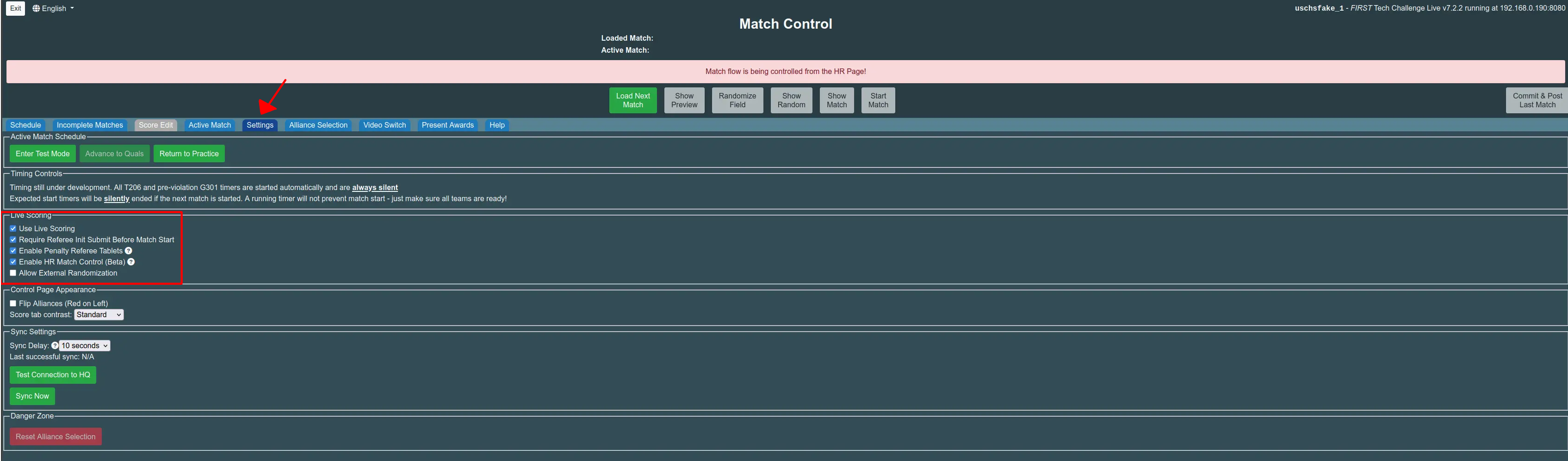
These settings are explained in the table below.
| Setting | Description |
|---|---|
| Enable Live Scoring | Allows Referees to Input scores through tablets (as opposed to filling out paper scoresheets) |
| Require Referee Init Submit before Match Start | Prevents starting a match until all referees (both scoring and penalty if configured) have submitted their pre-match setup. |
| Enable Penalty Referee Tablets | Allows penalty refs to key in penalties (requires 4 referee tablets). |
| Enable HR Match Control | Head Referees can operate Match Control buttons (Will Show a warning banner on the Scorekeeper’s Match Control Page) |
| Enable External Randomization | Check if using another source of random numbers like a giant foam die. Recommend to leave unchecked otherwise. |
Warning
Unchecking the “Require Referee Init Submit before Match Start” box allows starting a match without referee pre-match submission. The “Start Match” Button will show red, and clicking it will start a match without any warning whatsoever. Leave this option checked to reduce the likelihood of false starts.
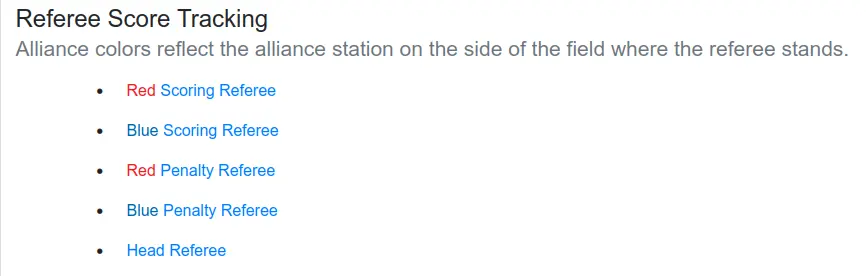
- If configured correctly, the Referee Score Tracking section on the event homepage will look like this:
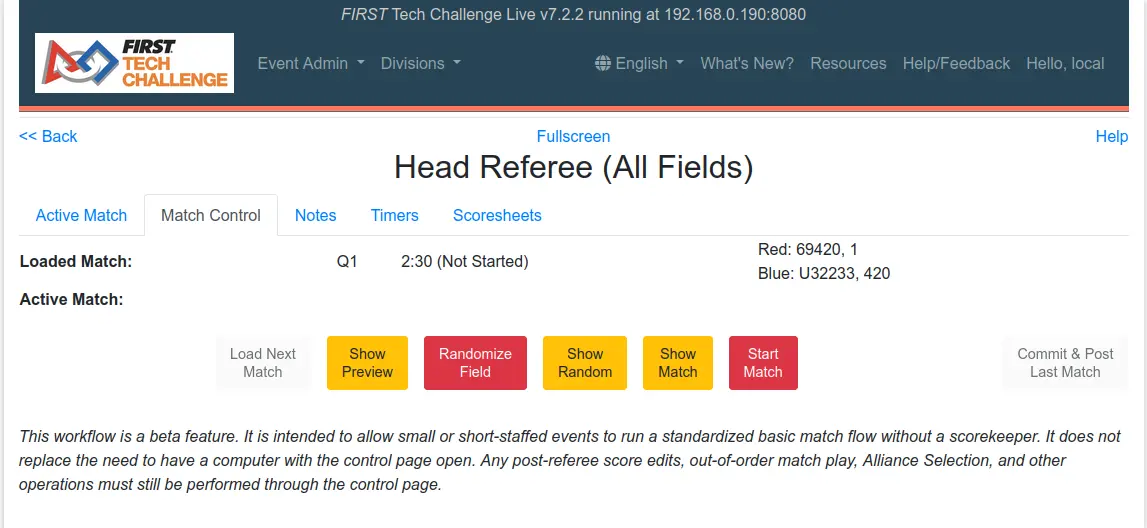
- The Head Referee Tablet should also have a new tab for Match Control.