Setup and Usage
Pit Sticks are preconfigured to a particular route. This can be changed later. The label on the stick indicates the preconfigured route with N for north and S for south.
To connect pit sticks:
- Connect to an HDMI port on the back of the Chesapeake-provided TV, or other display device.
- Connect USB power to an input power source. A MicroUSB cable is provided in the Production Drawers. The suggested power source is the USB port located on the back of the TV.
- The stick will power up briefly, but then shut off. Once the stick turns itself off, hold the power button on the side until the power indicator comes on again.
- The stick will boot to a blank desktop. The script is configured to wait until the Internet is reachable, and then to attempt to reach the FMS rankings page through the local access or remote access methods (preferring local, if available). Once an Internet connection is established, it takes about 60 seconds to launch the web browser window.
Troubleshooting
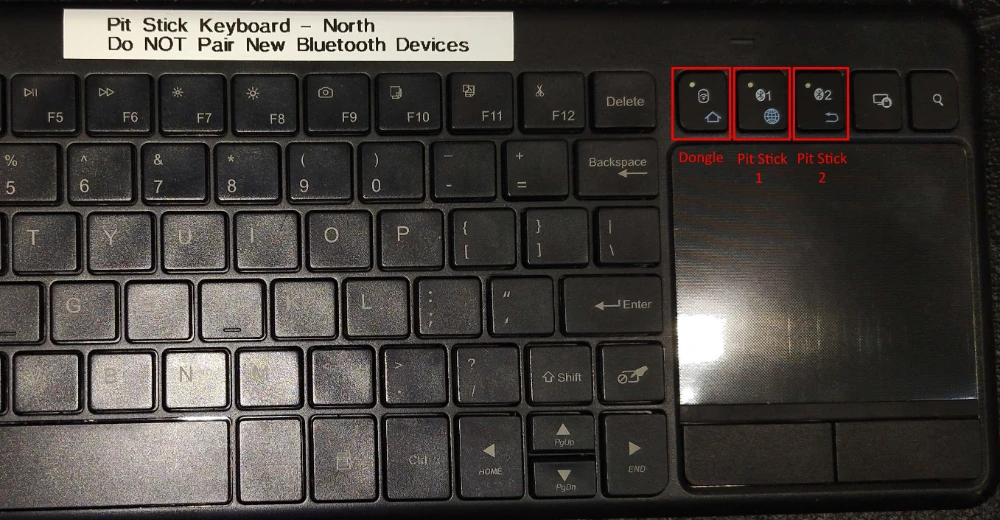
A wireless keyboard/mouse combination is provided in the Production Drawers. It contains two Bluetooth device slots, which have been pre-paired to each of the Pit Sticks. There is also a USB RF dongle, located on the back of the keyboard, inside the battery door. This dongle is useful for use with other devices, or for accessing a keyboard interface if the Bluetooth connection fails. Select the device that the keyboard transmits to by using one of the three buttons above the touchpad. Grab this keyboard to help interface with the pit sticks before continuing.
No Display/Signal
Note that the screen should show a mostly-blank background and a taskbar menu when idle. If this is the case, reference the next section.
- Check to ensure that the PC is turned on by looking at the power indicator. Check the power supply if the PC is off, then hold the power button for a couple of seconds until the power indicator turns on.
- Check to ensure that the correct input on the TV is selected.
- If the incorrect input was selected, restart the PC if there is still nothing displayed on the screen.
No Browser Window
If the screen shows a black background like the one shown below, the system does not have Internet connectivity and the script is waiting for this to be achieved.
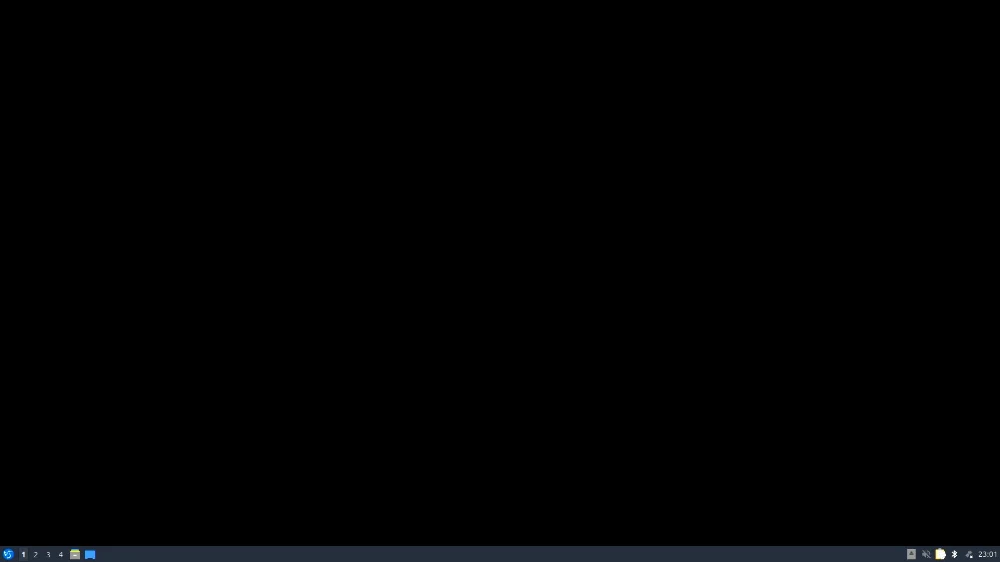
- Check the taskbar to see if the Pit Stick has Wi-Fi connectivity. As shown above, there is no connection, so the browser window will never open.
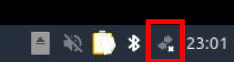
The icon should look something like this to indicate active Wi-Fi connection: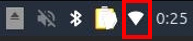
If a new Wifi connection needs to be added, click the network icon to pick from a list of discovered networks.
Note that password-protected Wi-Fi networks may need to have their passwords entered manually. This is not necessary if a window appears that prompts you for the network password.
Tap to expand/collapse instructions on manually entering Wi-Fi network passwords.
- Select the desired network.
- After selecting, right-click the network icon and select Edit Connections.
- Double-click the entry for the network that was just selected.
- Select the Wi-Fi Security tab.
- Enter the password, then click Save.
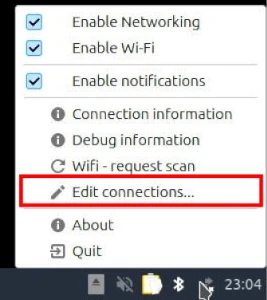
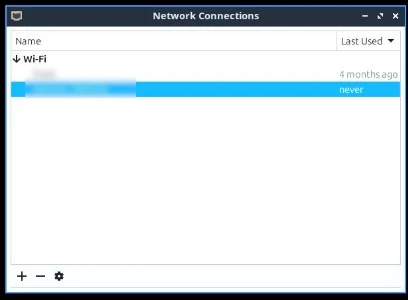
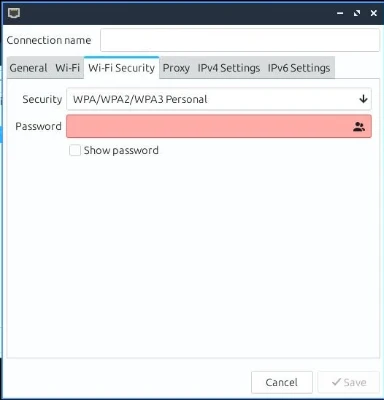
Reboot the stick if you added any Wi-Fi networks. It has been observed that the settings may fail to completely apply until the system is rebooted.
Browser Error
If the screen shows a window with an error related to Mozilla Firefox, this is an issue caused by large amounts of system load and latency. Reboot the pit stick and the issue should not recur.
Wrong Event is shown
If the screen loads a ranking page for the wrong event, the route is likely configured incorrectly. To fix this:
- Connect the Stick PC keyboard/mouse combo to the stick PC. Both route’s stick PCs are preconfigured to the two Bluetooth device presets
- If the browser window is shown fullscreen, press the Super/Windows key to open the menu over top. Select System Tools > QTerminal to open the terminal. You may need to then hit Alt-Tab to change active windows.
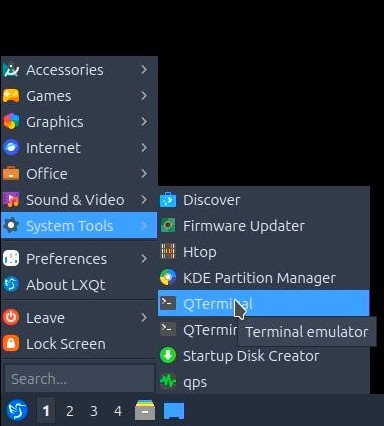
- Once the terminal can be seen, type the command:
grep Starting PitDisplay.logand press enter. You should see a number of lines that identify a route (north or south).
If this is incorrect, proceed with the next steps. If this is correct, stop here. Please send a message in the Chesapeake slack indicating that you are having the wrong event served from the Github backend. Provide the route you are on, the event being loaded, and the expected event. - Type the command:
cd Documents/and press enter. - Type the command:
sudo ./intel_stick_setup.shand press enter. The sudo password ismushroom. - In the prompt, type the number corresponding to the route you are on, then press enter. If you do not enter a value, or enter an invalid value, the script defaults to the south route. This script should complete with a message stating “Setup complete”. The warning displayed below is expected and can be ignored.
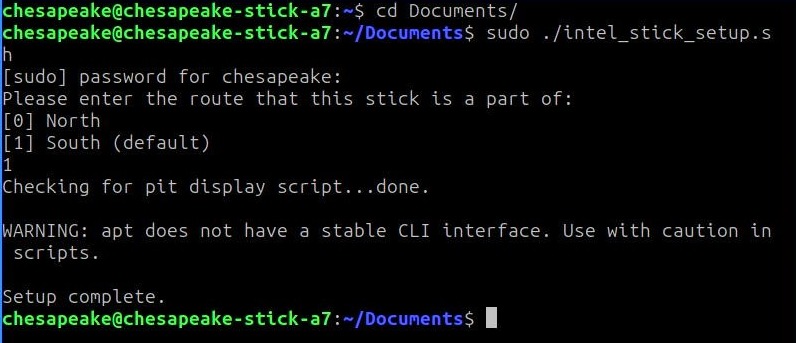
- Reboot the stick and try again.